Understanding svchost.exe (LocalSystemNetworkRestricted): Complete Guide to Its Purpose, CPU Usage, and Fixes

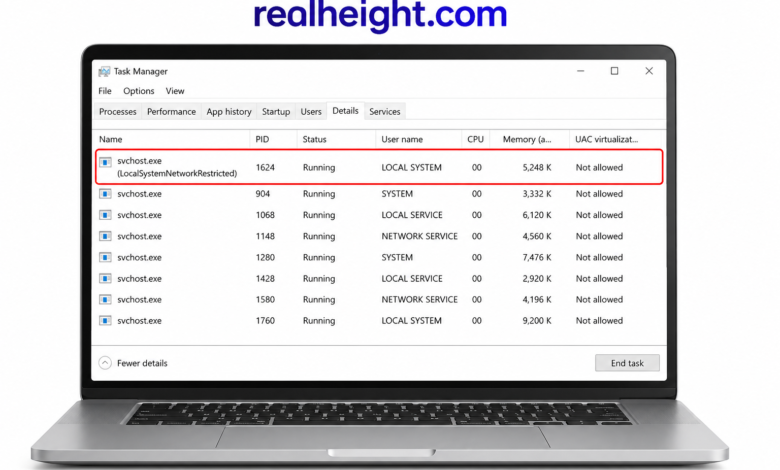
Windows runs hundreds of background processes to keep the operating system stable and responsive. Most users never notice these processes until one begins consuming a large amount of CPU, memory, or disk resources. One of the most commonly discussed Windows processes is svchost.exe (LocalSystemNetworkRestricted). Although the name may appear confusing, it plays an important role in running Windows services.
Many people become concerned after seeing this process in Task Manager because it sometimes uses high system resources or appears multiple times. In most situations, this behavior is completely normal. However, there are also cases where excessive resource usage indicates a problem that needs attention.
What Is svchost.exe?
The name svchost.exe stands for Service Host. It is a core Windows executable responsible for hosting one or more Windows services.
Instead of launching every service individually, Windows groups related services under Service Host processes. This approach reduces complexity and makes service management more efficient.
Since Windows 10, Microsoft separated many services into their own Service Host processes when enough system memory is available. Although this increases the number of processes shown in Task Manager, it improves reliability and troubleshooting.
What Does LocalSystemNetworkRestricted Mean?
The phrase LocalSystemNetworkRestricted refers to the security account under which the Service Host process runs.
This account combines powerful local system permissions with restricted network permissions. It allows Windows to perform essential tasks while limiting unnecessary network access.
The configuration helps reduce security risks because services running under this account cannot freely communicate across the network unless specifically allowed.
Main Characteristics
| Feature | Description |
|---|---|
| Local permissions | Very high privileges on the local computer |
| Network permissions | Restricted network access |
| Purpose | Improve security while maintaining system functionality |
| Used by | Several Windows background services |
| Safe to terminate | Usually not recommended |
Why Does Windows Use Multiple Service Host Processes?
Many users notice dozens of Service Host entries inside Task Manager.
This is completely normal.
Earlier versions of Windows grouped many services into one process. If one service crashed, multiple services could stop working together.
Modern Windows separates services into individual processes whenever possible, making it easier to:
- Improve stability
- Increase security
- Identify faulty services
- Reduce widespread crashes
- Simplify troubleshooting
Services Commonly Hosted
A Service Host process may contain different Windows services depending on your version of Windows.
Some common examples include:
- Windows Update
- Windows Event Log
- Background Intelligent Transfer Service
- Network Location Awareness
- Windows Time
- Remote Procedure Call
- DHCP Client
- Diagnostic Policy Service
The exact combination varies between systems.
Is svchost.exe (LocalSystemNetworkRestricted) Safe?
In almost every situation, yes.
It is an official Microsoft Windows component located inside the Windows system directory.
If the process appears in Task Manager and points to the correct location, it is a legitimate part of Windows.
Users should not delete or disable it because many important operating system features depend on it.
A genuine Service Host process helps Windows:
- Start essential services
- Manage background operations
- Handle system communication
- Maintain networking
- Improve operating system stability
How to Verify the Process
If you suspect malware, verifying the executable location is the first step.
Step 1
Open Task Manager.
Step 2
Locate the Service Host process.
Step 3
Right-click it.
Step 4
Choose Open File Location.
A legitimate file should normally be located in:
C:\Windows\System32\svchost.exe
If the executable appears somewhere else, it deserves further investigation.
Why Does CPU Usage Become High?
Sometimes users notice the process consuming significant CPU resources.
The process itself is rarely the actual problem.
Instead, one of the Windows services running inside it is usually responsible.
Common reasons include:
- Windows Update installing patches
- Corrupted update files
- Faulty device drivers
- Malware infection
- Broken Windows services
- Background maintenance tasks
- Damaged system files
Temporary spikes are generally normal.
Continuous high usage for hours is not.
Memory Usage Explained
RAM usage depends on the services currently running.
Modern Windows intentionally uses available memory to improve performance.
You may notice memory consumption increasing while:
- Installing updates
- Running Windows Defender scans
- Opening many applications
- Connecting to networks
- Starting the computer
In most cases, Windows automatically frees memory when needed.
How to Find Which Service Is Causing the Problem
When svchost.exe (LocalSystemNetworkRestricted) begins consuming excessive CPU, memory, or disk resources, the actual cause is usually one of the Windows services running inside it.
Fortunately, Windows makes it easy to identify the responsible service.
Using Task Manager
- Press Ctrl + Shift + Esc to open Task Manager.
- Click More Details if needed.
- Expand the Service Host process.
- View the individual services listed beneath it.
- Monitor which service is actively using resources.
This is the quickest method for identifying problematic services.
Using Resource Monitor
Resource Monitor provides even more detailed information.
To open it:
- Press Windows + R
- Type resmon
- Press Enter
From there, you can monitor CPU, memory, disk, and network activity for every Windows service.
Common Causes of High Disk Usage
High disk activity is another complaint associated with Service Host processes.
Some common causes include:
| Cause | Effect |
|---|---|
| Windows Update | Downloads and installs updates |
| Search Indexing | Scans files for faster searches |
| Windows Defender | Performs scheduled security scans |
| System Maintenance | Runs automatic optimization tasks |
| Driver Installation | Updates hardware drivers |
| Disk Errors | Forces repeated read/write operations |
Temporary spikes usually disappear once Windows finishes the background task.
Can You End the Process?
Technically, yes.
Practically, it is rarely a good idea.
Ending the process can stop important Windows services, leading to:
- Lost network connectivity
- Windows Update failures
- Audio problems
- Printing issues
- System instability
- Unexpected application errors
Windows may automatically restart the process, but some services might require a system reboot.
Unless you are troubleshooting a specific issue, it is better to leave it running.
Ways to Reduce High CPU Usage
If the process consistently consumes high CPU resources, try these solutions.
Restart the Computer
Many temporary Windows service issues disappear after a restart.
Install Pending Windows Updates
Microsoft regularly fixes bugs affecting background services.
Keeping Windows updated often resolves persistent performance problems.
Restart Windows Update Service
Sometimes the Windows Update service becomes stuck.
Restarting it can immediately reduce CPU usage.
Steps:
- Press Windows + R
- Type services.msc
- Locate Windows Update
- Right-click it
- Choose Restart
Run System File Checker
Corrupted Windows files can cause Service Host problems.
Open Command Prompt as Administrator and run:
sfc /scannowThis utility scans and repairs damaged system files.
Use DISM
If SFC cannot repair everything, run:
DISM /Online /Cleanup-Image /RestoreHealthDISM restores the Windows image using official system files.
Scan for Malware
Some malicious programs disguise themselves as Windows processes.
Run a complete scan using:
- Windows Security
- Microsoft Defender
- Another trusted antivirus solution
Never ignore unusual CPU usage combined with suspicious file locations.
Signs the Process May Not Be Genuine
Most copies are legitimate, but malware sometimes uses similar names.
Watch for these warning signs:
- File located outside System32
- Extremely high CPU usage for long periods
- Unknown publisher
- Frequent system crashes
- Random pop-up advertisements
- Disabled antivirus software
- Slow startup after recent downloads
If several of these symptoms appear together, perform a full malware scan immediately.
Performance Tips
Keeping Windows healthy reduces the chances of Service Host issues.
Helpful practices include:
- Install updates regularly.
- Remove unnecessary startup programs.
- Restart your PC occasionally.
- Keep drivers updated.
- Delete temporary files.
- Ensure adequate free disk space.
- Avoid downloading software from untrusted websites.
- Use reliable antivirus protection.
Small maintenance tasks can significantly improve long-term system performance.
Does This Process Use the Internet?
Sometimes, yes.
Certain Windows services require internet access to perform legitimate tasks, such as:
- Downloading Windows updates
- Checking time synchronization
- Verifying certificates
- Activating Windows
- Updating Microsoft Defender definitions
Because the account uses restricted network permissions, its internet access is carefully controlled by Windows.
Seeing occasional network activity is perfectly normal.
Does Every Computer Have It?
Yes.
Nearly every modern Windows computer includes this Service Host process.
Whether you use Windows 10 or Windows 11, multiple Service Host entries will usually appear in Task Manager.
The exact number depends on:
- Installed features
- Available RAM
- Running services
- Background applications
- Windows version
Seeing many Service Host processes does not necessarily indicate a problem.
Frequently Asked Questions
Why are there so many Service Host processes in Task Manager?
Modern versions of Windows separate many services into individual Service Host processes instead of grouping them together. This design improves stability, security, and troubleshooting by preventing one faulty service from affecting others.
Can I disable svchost.exe (LocalSystemNetworkRestricted)?
It is not recommended. The process supports essential Windows services, and disabling it can lead to network problems, update failures, or system instability.
Is high CPU usage always a sign of malware?
No. Windows Update, Microsoft Defender, indexing, and other background maintenance tasks can temporarily increase CPU usage. If the usage remains unusually high for a long time or the executable is located outside the System32 folder, perform a malware scan.
Why does the process sometimes disappear and return?
Windows automatically starts and stops certain services based on system needs. This behavior is normal and helps optimize performance.
How can I tell if the file is genuine?
Right-click the process in Task Manager and choose Open File Location. A legitimate file should be located in:
C:\Windows\System32\svchost.exe
If the file is stored elsewhere, investigate it further with a trusted antivirus program.
Troubleshooting Checklist
Use the following checklist if you notice unusual behavior:
| Task | Recommended |
|---|---|
| Restart the computer | ✔ Yes |
| Check Windows Update | ✔ Yes |
| Scan for malware | ✔ Yes |
| Run System File Checker | ✔ Yes |
| Run DISM | ✔ Yes |
| Update hardware drivers | ✔ Yes |
| Delete the process manually | ✘ No |
| Disable Windows services without knowing their purpose | ✘ No |
Following these steps resolves many common performance issues without affecting important Windows components.
Common Misconceptions
Several myths surround Windows Service Host processes. Understanding the facts can prevent unnecessary concern.
| Myth | Reality |
|---|---|
| Every Service Host process is malware | Most are legitimate Windows components. |
| High memory usage always indicates a problem | Windows may intentionally use available memory to improve performance. |
| Ending the process permanently fixes CPU issues | The underlying service usually causes the problem, not the host process itself. |
| One Service Host process runs every Windows service | Modern Windows distributes services across multiple processes. |
| It is safe to delete the executable | Removing it can damage Windows and prevent essential services from running. |
Best Practices for a Healthy Windows System
Keeping your operating system in good condition reduces the likelihood of background service issues.
Some practical habits include:
- Install Windows updates as they become available.
- Keep device drivers current.
- Uninstall software you no longer use.
- Avoid downloading files from unknown sources.
- Use reliable security software.
- Free up disk space regularly.
- Restart your computer occasionally instead of leaving it running for weeks.
- Create restore points before making major system changes.
These simple practices help maintain stability and improve overall performance.
Final Thoughts
Seeing svchost.exe (LocalSystemNetworkRestricted) in Task Manager is completely normal for most Windows users. It serves as a Service Host for important background operations and allows essential Windows services to run with high local privileges while maintaining restricted network access for improved security.
Although temporary increases in CPU, memory, disk, or network usage can occur during updates, system maintenance, or security scans, persistent resource consumption usually points to an underlying service rather than the host process itself. Identifying the specific service, keeping Windows updated, repairing damaged system files, and scanning for malware are the most effective ways to resolve performance issues.
Understanding how Windows manages its background services helps you distinguish normal behavior from genuine problems. Instead of ending or deleting the process, focus on diagnosing the service it hosts. With regular maintenance and safe computing habits, your system can continue running efficiently while these essential Windows components operate quietly in the background.
Realheight.com